 Screenshots Clipboard
How to take a full page screenshot on any browser or device
To take a full page screenshot for free, use the tool your browser or phone already has. In Chrome, press F12, then Ctrl+Shift+P, and pick Capture full size screenshot. In Edge or Firefox, press Ctrl+Shift+S and choose the full page. On an iPhone, take a screenshot, tap it, then tap Full Page.
By Manish Kalyan, who makes Screenshots Clipboard. .
In a hurry? Screenshots Clipboard does this in one click. See how
How do I take a full page screenshot in Chrome?
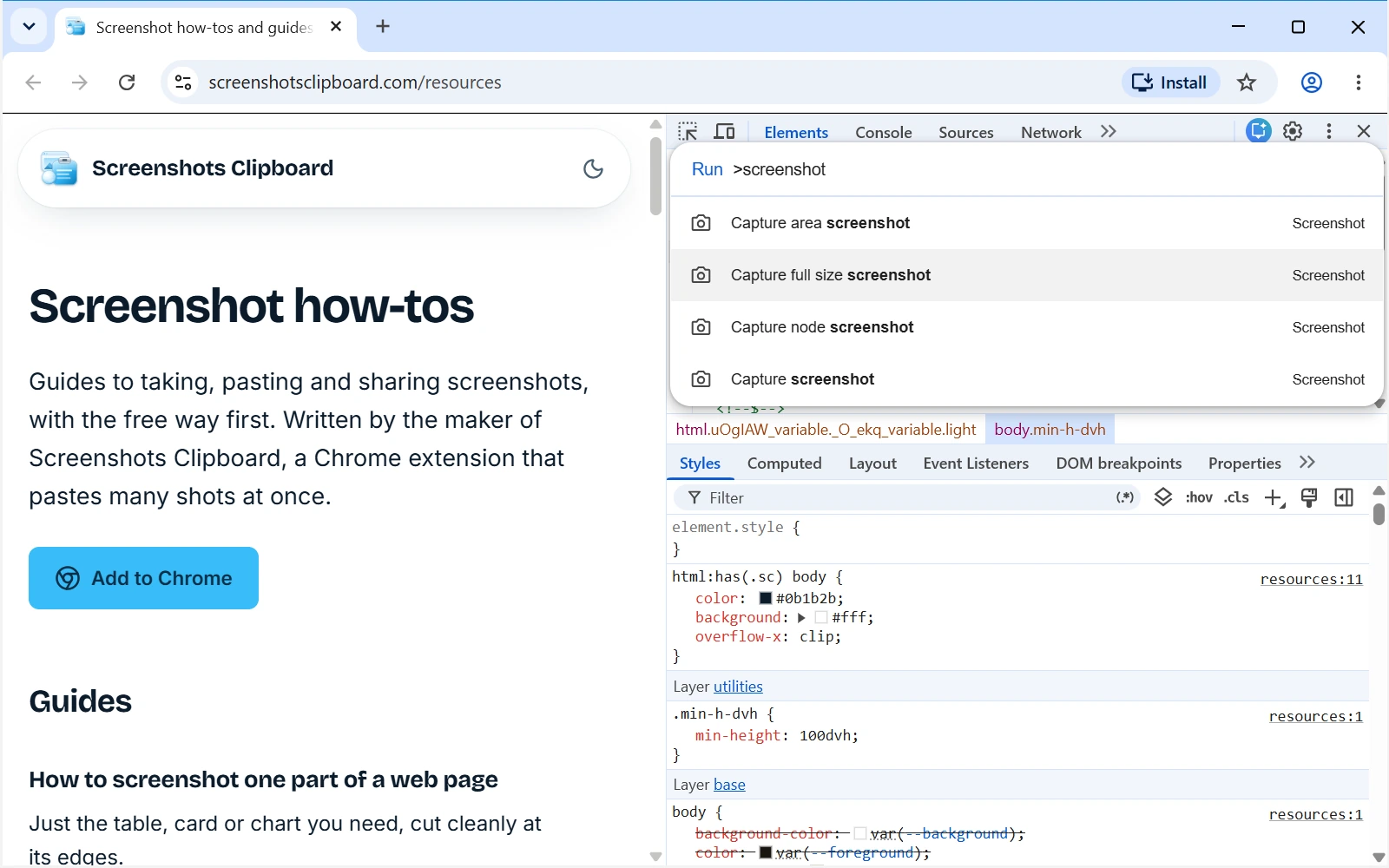
Use the screenshot commands in Chrome’s DevTools, which are free and already there. Our Chrome guide adds phone sizes and more fixes.
- Scroll to the bottom of the page and back to the top, so pictures that load as you scroll are there.
- Press F12 (Cmd+Option+I on a Mac) to open DevTools.
- Press Ctrl+Shift+P (Cmd+Shift+P on a Mac) and type screenshot.
- Pick Capture full size screenshot. A PNG lands in your downloads.
How do I take a full page screenshot in Microsoft Edge?
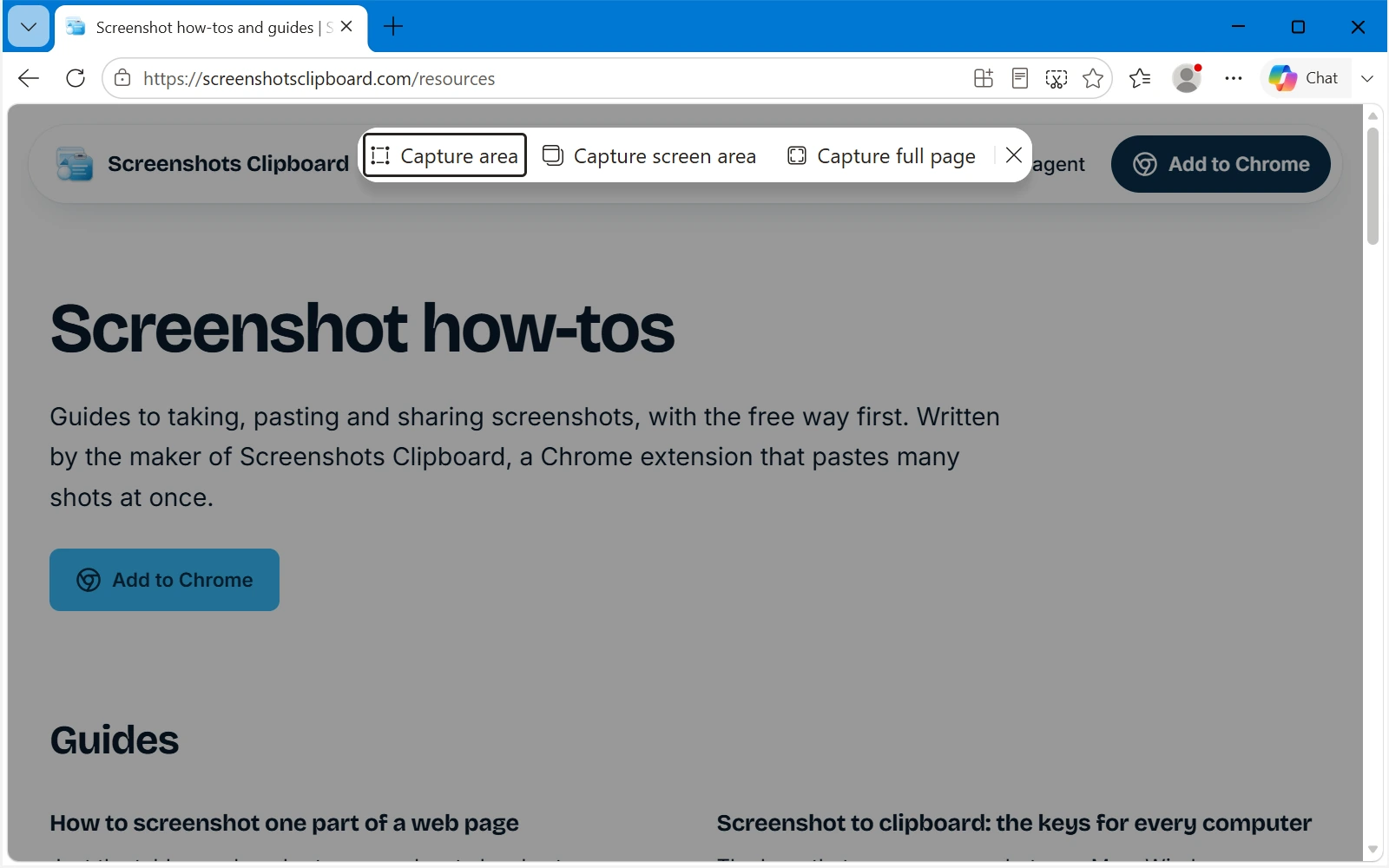
Edge has its own screenshot tool, with a full page option.
- Press Ctrl+Shift+S, or open the … menu and choose Screenshot (Web capture in older versions).
- Choose Capture full page.
- Draw or highlight on it if you need to, then copy or save it.
How do I take a full page screenshot in Firefox?
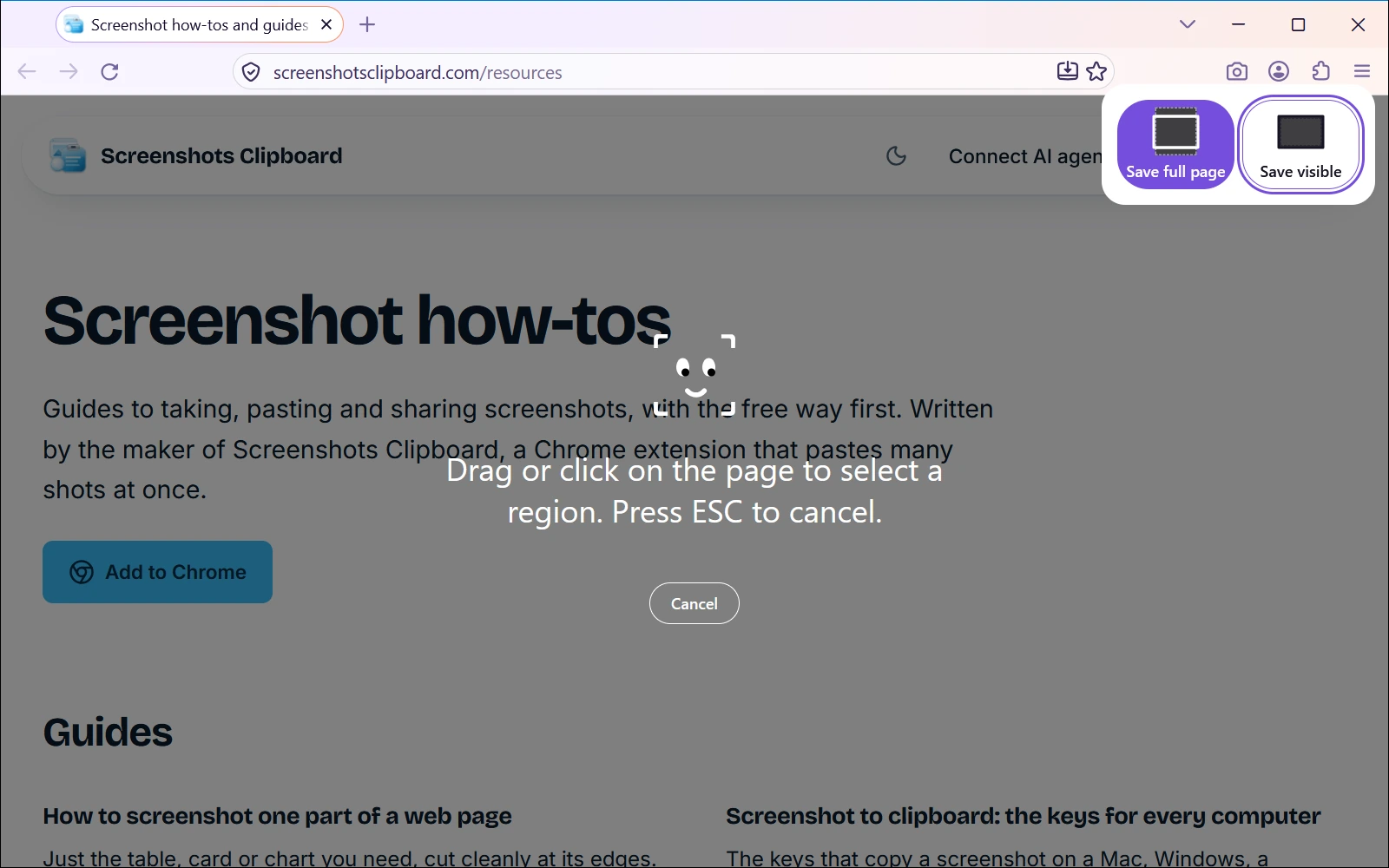
Firefox’s screenshot tool takes the whole page and can copy it too.
- Right-click an empty part of the page and choose Take Screenshot, or press Ctrl+Shift+S (Cmd+Shift+S on a Mac).
- Choose Save full page, at the top right.
- Click Download to save a PNG, or Copy to paste it somewhere.
How do I take a full page screenshot in Safari on a Mac?
Safari keeps the whole page as a PDF from its Print window, laid out as printed pages. For one long picture, open the page in Firefox or Chrome on the same Mac.
- Open the page in Safari and choose File > Print.
- Open the PDF menu and choose Save as PDF.
- Name the file and pick where to save it.
How do I take a full page screenshot on Windows?
Windows can’t do it by itself: Snipping Tool and Win+Shift+S take only what’s on your screen. Use one of the browsers above for a web page, and our Windows scrolling screenshot guide for other apps.
How do I take a full page screenshot on a Mac?
The Mac’s own keys stop at the edge of the screen: Cmd+Shift+3 takes the screen and Cmd+Shift+4 a part of it. Use Firefox or Chrome for a web page; our Mac scrolling screenshot guide has the steps.
How do I take a full page screenshot on an iPhone or iPad?
Safari on an iPhone or iPad has it built in: take a normal screenshot, then tap Full Page.
- Open the page in Safari.
- On an iPhone, press the side button and volume up together. On an iPad, press the top button and a volume button. With a Home button, press it with the side or top button.
- Tap the screenshot thumbnail in the lower left.
- Tap Full Page, then drag the preview on the right to see the rest.
- Save it. On iOS 26, Save to Photos keeps a picture and Save PDF to Files keeps a PDF.
How do I take a full page screenshot on Android?
Most phones on Android 12 or later can: take a screenshot, then tap Capture more, or Scroll capture on a Samsung Galaxy. It works on most screens that scroll.
- Pixel and most Android phones: press Power and Volume down together, tap Capture more at the bottom, then use the crop guides to choose how much to keep.
- Samsung Galaxy: press the Side and Volume down buttons together, then tap Scroll capture, the two arrows pointing down. Each tap adds the next screen; tap outside the toolbar when you’re done.
- No toolbar on a Galaxy? Samsung’s guide says to turn on Show toolbar after capturing, in Settings > Advanced features > Screenshots and screen recorder.
Can an extension take a full page screenshot?
Yes. Many browser extensions take the whole page in one click, and some copy it or save it as a PDF; check these before you add one.
- What it asks to access, and whether that fits a screenshot tool.
- Where your shots go: kept on your computer, or sent to the maker’s servers. Its privacy policy should say.
- What’s free and what’s paid, such as PDFs or very long pages.
- How it does on your longest page and on an app that scrolls inside a panel.
- When it was last updated, so it keeps up with your browser.
Why does my full page screenshot look wrong?
Long pages trip up most tools in the same few ways, so check the middle and the bottom, not just the top. For Chrome, our guide to Capture full size screenshot not working has more.
- Pictures missing halfway down: many pages load them only as you scroll near them. Scroll to the bottom and back, then capture again.
- The header on every screen: tools that scroll and join screens catch a sticky header each time. Our sticky header guide has the fixes.
- A huge first section: in Chrome’s DevTools, the page is laid out at its full height for the capture, so parts sized to your window can stretch.
- Only one screen of an app: web mail, chats and dashboards scroll inside a panel, so a full page capture sees one screen of it.
- A cut-off bottom: very long pages can hit a size limit. Capture them in parts.
Where Screenshots Clipboard helps
Screenshots Clipboard is a Chrome, Edge, Firefox and Brave extension that takes the whole page in one click, top to bottom, with a sticky header shown once. Click Full page or press Alt+Shift+F, then paste it right away, save it as PNG, JPG or WebP, or keep it with your other shots. It’s free; PDFs, and full pages that wait for parts that animate as you scroll, come with Plus.
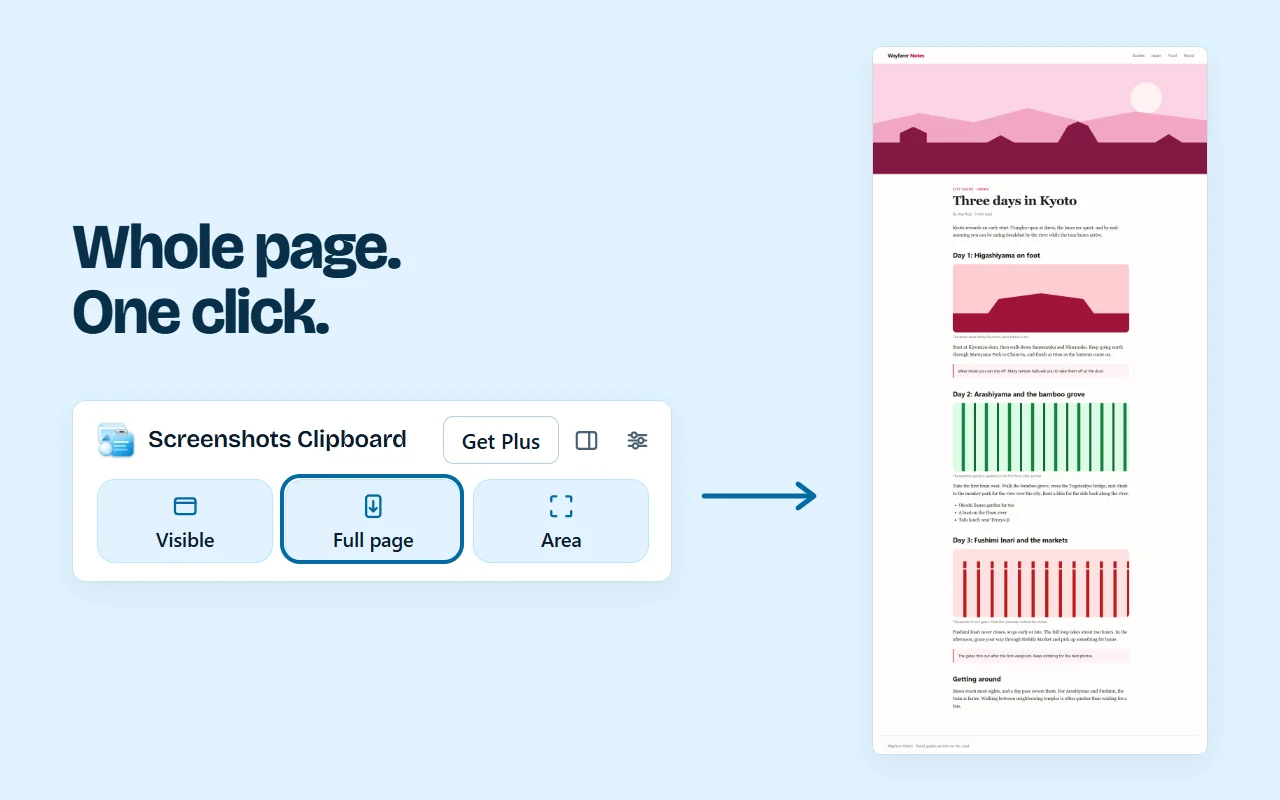
It works in Chrome, Edge, Firefox and Brave on a computer.
Questions
What is a full page screenshot?
One picture of a whole web page, top to bottom, including the parts you’d scroll to see. A normal screenshot takes only what fits on your screen.
Is there a keyboard shortcut for a full page screenshot?
In Edge and Firefox, Ctrl+Shift+S (Cmd+Shift+S in Firefox on a Mac) opens the screenshot tool, where you pick the full page. Chrome has no single key; DevTools gets you there in a few.
Does a full page screenshot save as a picture or a PDF?
Chrome’s DevTools and Firefox save a PNG picture. On an iPhone with iOS 26, you choose: a picture in Photos or a PDF in Files.
Can I copy a full page screenshot instead of saving it?
Yes, in Edge and Firefox, which both have Copy. Our full page clipboard guide shows how.
Over to you
What do you need full page screenshots of most: pages to review, receipts or designs?
Write to us, and a person replies. Write to us
Sources
- Chrome DevTools: Command Menu, checked 1 Nov 2026
- Chrome DevTools: device mode, checked 1 Nov 2026
- Chromium source: the DevTools screenshot commands, checked 8 Nov 2026
- Chromium source: DevTools saves screenshots as PNG, checked 8 Nov 2026
- Chromium source: how a full size screenshot is taken, and its size limit, checked 8 Nov 2026
- web.dev (Google): browser-level image lazy loading, checked 8 Nov 2026
- Microsoft Edge: screenshot a webpage, checked 1 Nov 2026
- Mozilla: take screenshots in Firefox, checked 5 Nov 2026
- Apple: save a document as a PDF on Mac, checked 8 Nov 2026
- Microsoft: use Snipping Tool to capture screenshots, checked 4 Nov 2026
- Apple: take a screenshot on Mac, checked 4 Nov 2026
- Apple: take a screenshot on iPhone, checked 8 Nov 2026
- Apple: take a screenshot on iPhone (iOS 26), checked 8 Nov 2026
- Apple: take a screenshot on iPad, checked 8 Nov 2026
- Google: take a screenshot on your Android device, checked 8 Nov 2026
- Samsung: take a screenshot on a Galaxy phone or tablet, checked 8 Nov 2026
- Samsung: use Scroll capture on a Galaxy phone, checked 8 Nov 2026