 Screenshots Clipboard
How to take a scrolling screenshot on Windows
Windows can’t take a scrolling screenshot by itself: Snipping Tool and Win+Shift+S take only what’s on your screen. For a web page, open it in Edge, press Ctrl+Shift+S and choose Capture full page; for any other window, the free ShareX app has a scrolling capture.
By Manish Kalyan, who makes Screenshots Clipboard. .
In a hurry? Screenshots Clipboard does this in one click. See how
Can Snipping Tool take a scrolling screenshot?
No. Snipping Tool and Win+Shift+S offer Rectangle, Window, Full screen and Freeform, and each takes only what’s on your screen right now.
How do I take a scrolling screenshot of a web page on Windows?
Use your browser. Each of these takes the whole page, top to bottom, for free.
- Edge: press Ctrl+Shift+S, choose Capture full page, then copy or save it.
- Firefox: right-click the page, choose Take Screenshot, then Save full page.
- Chrome: press F12, then Ctrl+Shift+P, type screenshot and pick Capture full size screenshot. It saves a PNG to your downloads.
How do I take a scrolling screenshot of another app on Windows?
Windows has nothing built in for that. ShareX, a free and open-source screenshot tool for Windows, has a scrolling capture for windows that scroll.
Why does my scrolling screenshot look wrong?
Long pages trip up most tools in the same few ways. Check the middle and the bottom, not just the top.
- Blank pictures halfway down: the page loads them only as you scroll. Scroll to the bottom and back, then capture again.
- The header on every screen: some tools show a sticky header again on each screen of a long page.
- Only one screen of an app: web mail, chats and dashboards scroll inside a panel, so a full-page capture sees one screen of it.
What about Print Screen or saving as a PDF?
Print Screen takes only the screen you see. Ctrl+P and Save as PDF keeps the whole page, but as printed pages, so the layout often changes.
Where Screenshots Clipboard helps
Screenshots Clipboard is a Chrome, Edge, Firefox and Brave extension that takes the whole page in one click on Windows, top to bottom, with a sticky header shown once. Click Full page or press Alt+Shift+F, then paste it right away, save it as PNG, JPG or WebP, or keep it with your other shots. It’s free; PDFs, and full pages that wait for parts that animate as you scroll, come with Plus.
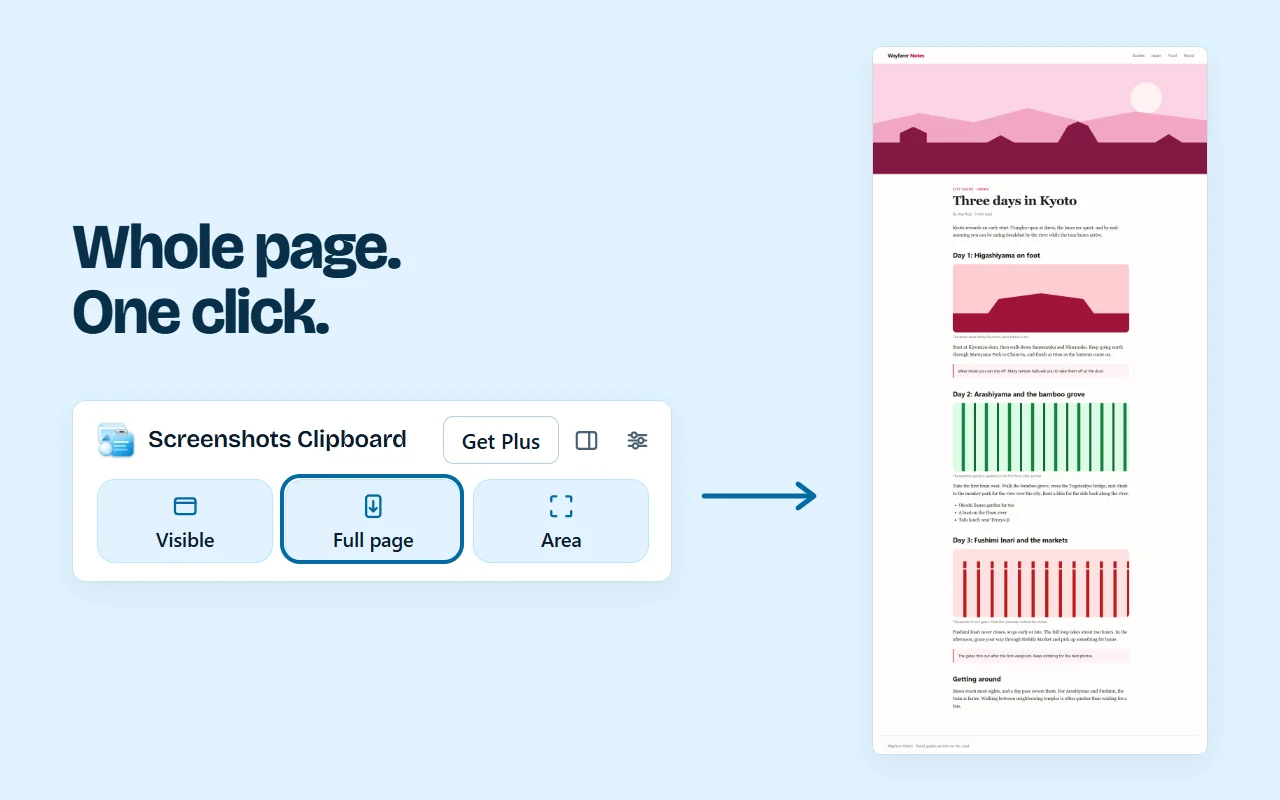
It works in Chrome, Edge, Firefox and Brave on a computer.
Questions
Does Windows 11 have a scrolling screenshot?
Not built in. Windows 11’s Snipping Tool takes only what’s on the screen, so use Edge’s Capture full page for web pages.
Is there a keyboard shortcut for a scrolling screenshot on Windows?
Windows itself has none. In Edge, Ctrl+Shift+S opens its Screenshot tool, where you pick Capture full page.
Can I copy a scrolling screenshot instead of saving it?
Edge’s Screenshot tool lets you copy it. Our full-page clipboard guide shows the other ways.
Over to you
What do you need a scrolling screenshot of most: web pages, chats or documents?
Write to us, and a person replies. Write to us
Sources
- Microsoft: use Snipping Tool to capture screenshots, checked 4 Nov 2026
- Microsoft Edge: screenshot a webpage, checked 1 Nov 2026
- Mozilla: take screenshots in Firefox, checked 5 Nov 2026
- Chrome DevTools: Command Menu, checked 1 Nov 2026
- ShareX: a free, open-source screenshot tool for Windows, checked 7 Nov 2026