 Screenshots Clipboard
Capture full size screenshot not working in Chrome? How to fix it
Most of the time the page hadn’t loaded everything yet, it scrolls inside a panel, or the PNG went to your downloads unnoticed. Scroll to the bottom and back, run Capture full size screenshot again, and press Ctrl+J (Cmd+Shift+J on a Mac) to find the file.
By Manish Kalyan, who makes Screenshots Clipboard. .
In a hurry? Screenshots Clipboard does this in one click. See how
Why are pictures missing from my full size screenshot?
Many pages load pictures only as you scroll near them, and the capture doesn’t scroll. Load them first, then capture.
- Scroll slowly to the bottom of the page, so every picture loads.
- Scroll back to the top.
- Run Capture full size screenshot again.
Why are parts of my full size screenshot blank or grey?
Usually a part that hadn’t appeared yet when Chrome took the picture. Check which of these it is.
- Sections that fade in as you scroll: scroll past each one first, then capture.
- Pictures still loading: wait until the page stops changing.
- A huge or stretched first section: Chrome lays the page out at its full height for the capture, so parts sized to your window can stretch. Capture that part on its own with Capture screenshot.
- The page stays the wrong size after a capture: reload it. Chrome 148 fixed a bug that sometimes did this, so update Chrome too.
Why do I get only one screen of a web app?
Chrome measures the page’s own scroll, and web mail, chats and dashboards often scroll inside a panel instead. The page itself is one screen tall, so that’s what you get.
- In DevTools, click the device toolbar button (the phone and tablet icon).
- Keep Dimensions on Responsive and type a big height, like 3000.
- An app that fills the window may now show more of its list.
- From the ⋮ menu in that bar, choose Capture screenshot.
Why is my full size screenshot cut off on a long page?
Chromium’s code turns down pages 131,072 pixels tall or more, and a feed that loads more as you scroll stops at what has loaded. Capture very long pages in parts.
- Right-click the first section of the page and choose Inspect.
- In the Elements panel, click the line whose blue box covers that section.
- Right-click the line and choose Capture node screenshot. It includes the parts below the screen.
- Do the same for each section after it.
Why can’t I find Capture full size screenshot?
It’s in DevTools’ Command Menu, so DevTools has to be open first. Check these in order.
- Click inside DevTools, then press Ctrl+Shift+P (Cmd+Shift+P on a Mac).
- The box should start with Run >. Without the >, it searches files instead, so close it and press Ctrl+Shift+P again.
- Or use the menu: click ⋮ in DevTools, then Run command.
- Type screenshot and pick Capture full size screenshot from the list.
- It’s also in the device toolbar: open it, then choose Capture full size screenshot from its ⋮ menu.
- On a school or work computer, your organisation can turn DevTools off, with its keys and menus. Ask your IT team, or use Edge or Firefox and press Ctrl+Shift+S.
Where did my full size screenshot go?
DevTools saves a PNG to your downloads, usually the Downloads folder. Press Ctrl+J (Cmd+Shift+J on a Mac) to open Chrome’s Downloads page and find it.
- If Ask where to save each file before downloading is on, in Settings > Downloads, Chrome asks for a folder each time.
- Insufficient permissions: Chrome couldn’t save to that folder. Pick one you can use, like Desktop or Documents.
- Disk full: there’s no room for the file. Free up some space and capture again.
- Download blocked: your computer’s security settings stopped the file. On Windows, check its internet security settings.
Where Screenshots Clipboard helps
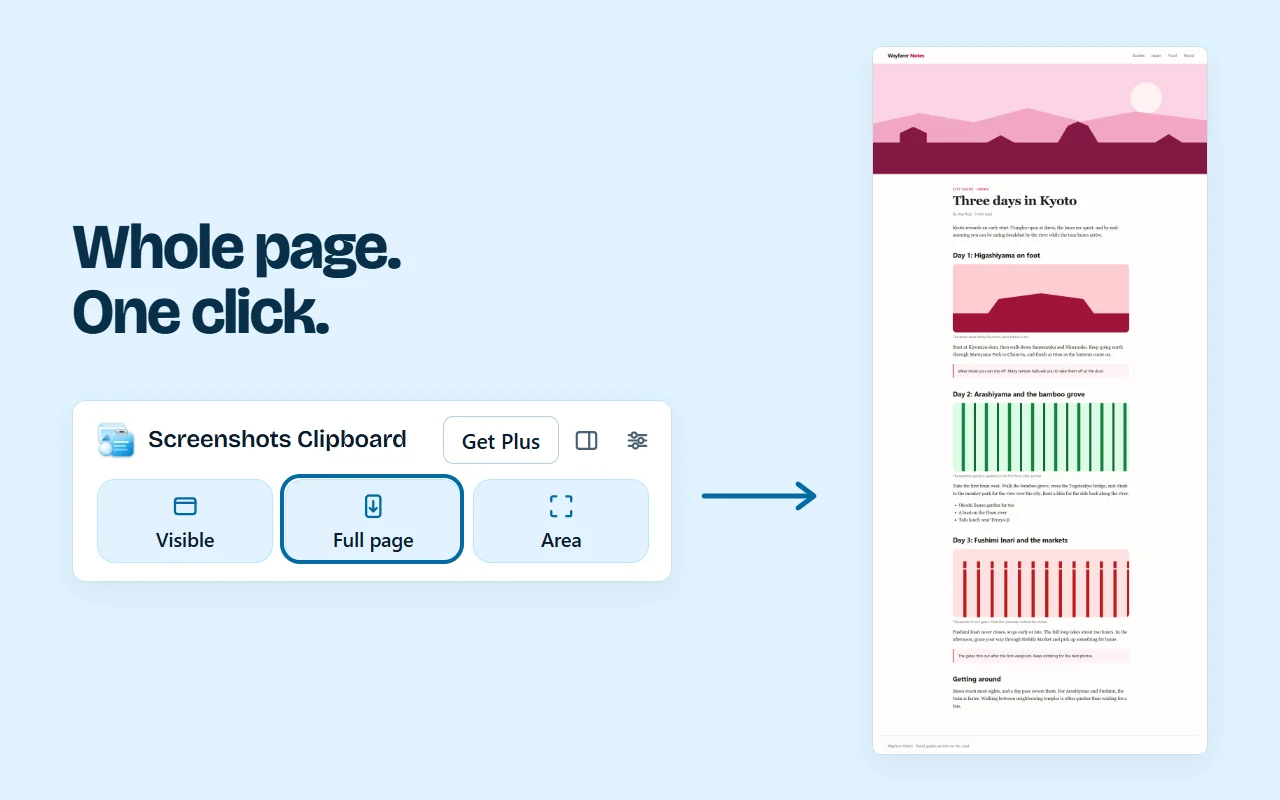
Screenshots Clipboard is a Chrome, Edge, Firefox and Brave extension that takes the whole page without DevTools: click Full page or press Alt+Shift+F, and the page goes on your clipboard, top to bottom, with a sticky header shown once. Save it as PNG, JPG or WebP when you need a file. It’s free; PDFs, and full pages that wait for parts that animate as you scroll, come with Plus.
It works in Chrome, Edge, Firefox and Brave on a computer.
Questions
Is there a free way without DevTools?
Yes. In Edge or Firefox, press Ctrl+Shift+S, choose the full page, then copy or save it.
Can I take a full size screenshot at phone size?
Yes. Open the device toolbar, pick a phone at the top, then choose Capture full size screenshot from its ⋮ menu.
Over to you
Which page broke your full size screenshot, and how?
Write to us, and a person replies. Write to us
Sources
- web.dev (Google): browser-level image lazy loading, checked 8 Nov 2026
- Chromium source: how a full size screenshot is taken, and its size limit, checked 8 Nov 2026
- Chromium source: how the page’s full size is measured, checked 8 Nov 2026
- Chrome DevTools: what’s new in Chrome 148 (a full-page screenshot fix), checked 8 Nov 2026
- Chrome DevTools: device mode, checked 1 Nov 2026
- Chrome DevTools: view and change the DOM, checked 8 Nov 2026
- Chrome DevTools: what’s new in Chrome 89 (node screenshots below the fold), checked 8 Nov 2026
- Chrome DevTools: Command Menu, checked 1 Nov 2026
- Chromium: the DeveloperToolsAvailability policy, checked 8 Nov 2026
- Chromium source: DevTools saves screenshots as PNG, checked 8 Nov 2026
- Google Chrome Help: keyboard shortcuts, checked 8 Nov 2026
- Google Chrome Help: download a file, checked 8 Nov 2026
- Google Chrome Help: fix file download errors, checked 8 Nov 2026
- Microsoft Edge: screenshot a webpage, checked 1 Nov 2026
- Mozilla: take screenshots in Firefox, checked 5 Nov 2026